
Linuxに堕落したhp Probook 430 G3をSwayお試しマシンにしてみたこと
今日は2026年11月6日。
個人の翻訳事務所、ヒノトリホンヤクの本店がある東京都日野市の天候は晴れ。
11月にしては暖かいんじゃないでしょうか。
夏日のところもあるようです。
今回は、とつぜん思いついて hp Probook 430 G3の128GB SSD(CrunchbangPlusPlusでLinuxのOpenbox環境になっていた)を抜きました。そこに500GBの(回転する)HDDを入れて、Ubuntu Sway Remix 26.04 LTSをインストールして遊んでみました。
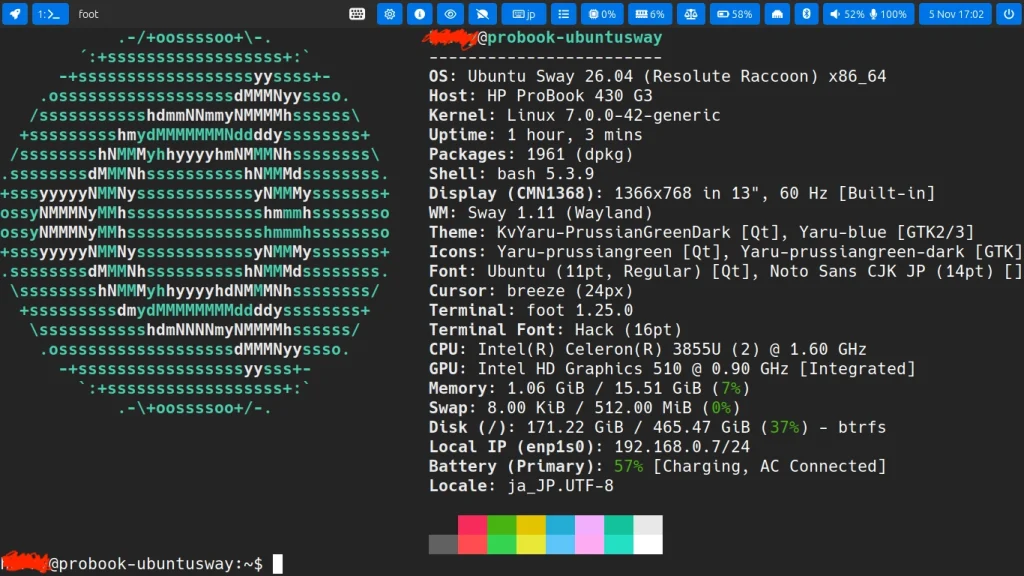
内蔵ストレージのプランBになった後のhp ProBook 430G3は、こんなマシンです。
hp ProBook 430 G3 (HDD換装後)
–+—-+—-+—-+—-+—-+—-+—-+–
OS: Ubuntu Sway Remix 26.04 LTS Sway (FreeBSDではなくLinuxです) (不本意です)
CPU: Celeron 3855U
RAM: 16GB
Storage: 500GB (HDD) (Btrfs) 使用 ?GB 空き ?GB
LCD: 1366 x 768 pxls
Display: 13.3″
Note: 2022-11-25購入
Note: 当初はNomadBSD 13.0-RELEASE系 → その後GhostBSD 14.0-STABLE系
Note: サウンドチップがスピーカーに異音を流し始めて暴走するようになるクセがあり、FreeBSDを断念。
Note: Ubuntu Sway Remix で Sway (Wayland)を試した。
(2026-11-05)ハードドライブを500GBの回転するHDDに換装した。
なかなか快適。
今回のストーリーに関連する過去のブログエントリーはコレです。 ⬇️
使用したインストーライメージ:
ubuntusway-26.04-desktop-amd64.iso
サイズは2.5GBくらいです。
各種設定ファイルは以下のとおり。
ユーザーのホームにあるSwayの設定ファイル。
編集するときは慎重に。
~/.config/sway/config
#### A copy of ~/.config/sway/config on 2026-11-05
#### a little bit modified by user
#### 最後尾にいくつか編集した実績アリ。
#
#
#
# Default config for sway
#
# Copy this to ~/.config/sway/config and edit it to your liking.
#
# Read `man 5 sway` for a complete reference.


# Styles
set $theme /usr/share/themes/yaru-sway


# theme variables
include $theme/variables


# Global variables
include /etc/sway/variables


# User variables
include $HOME/.config/sway/variables.d/*.conf


include /etc/sway/outputs/*.conf
include /etc/sway/inputs/*.conf


# include modes
include /etc/sway/modes/*.conf


# Additional configs
include /etc/sway/config.d/*.conf


# User config
include $HOME/.config/sway/config.d/*.conf


# Include nwg-displays config's (if exists)
include ~/.config/sway/outputs
include ~/.config/sway/workspaces
include keyboard
include touchpad


### thunar pcmanfm内部でのアイコンテーマを強制的に固定する。
### アイコンテーマはFlat-No-Moreのfnm-violetを採用する。
### アイコンテーマは store.kde.orgから。
### Lxappearanceを使って設定したが、swayを起動すると誰かが
### 上書きしてくるようなので、ここで強制した。
### 2026-11-05 edited by user.
#
exec_always gsettings set org.gnome.desktop.interface icon-theme 'fnm-violet'


# floating window trial
# for_window [app_id="com.sayonara-player.Sayonara"] floating enable
# for_window [app_id="thunar"] floating enable
# for_window [class="Audacious"] floating enable
#
ユーザーのホームではなくシステム側にあるSwayの設定ファイルです。
編集してはいけません。
/etc/sway/config
# Default config for sway
#
# Copy this to ~/.config/sway/config and edit it to your liking.
#
# Read `man 5 sway` for a complete reference.


### Variables
#
# Logo key. Use Mod1 for Alt.
set $mod Mod4
# Home row direction keys, like vim
set $left h
set $down j
set $up k
set $right l
# Your preferred terminal emulator
set $term foot
# Your preferred application launcher
set $menu wmenu-run


include /etc/sway/config-vars.d/*


### Output configuration
#
# Default wallpaper (more resolutions are available in /usr/share/backgrounds/sway/)
# This is commented in Debian, because the Sway wallpaper files are in a separate
# package `sway-backgrounds`. Installing this package drops a config file to
# /etc/sway/config.d/
# output * bg /usr/share/backgrounds/sway/Sway_Wallpaper_Blue_1920x1080.png fill
#
# Example configuration:
#
# output HDMI-A-1 resolution 1920x1080 position 1920,0
#
# You can get the names of your outputs by running: swaymsg -t get_outputs


### Idle configuration
#
# Example configuration:
#
# exec swayidle -w \
# timeout 300 'swaylock -f -c 000000' \
# timeout 600 'swaymsg "output * power off"' resume 'swaymsg "output * power on"' \
# before-sleep 'swaylock -f -c 000000'
#
# This will lock your screen after 300 seconds of inactivity, then turn off
# your displays after another 300 seconds, and turn your screens back on when
# resumed. It will also lock your screen before your computer goes to sleep.


### Input configuration
#
# Example configuration:
#
# input type:touchpad {
# dwt enabled
# tap enabled
# natural_scroll enabled
# middle_emulation enabled
# }
#
# input type:keyboard {
# xkb_layout "eu"
# }
#
# You can also configure each device individually.
# Read `man 5 sway-input` for more information about this section.


### Key bindings
#
# Basics:
#
# Start a terminal
bindsym $mod+Return exec $term


# Kill focused window
bindsym $mod+Shift+q kill


# Start your launcher
bindsym $mod+d exec $menu


# Drag floating windows by holding down $mod and left mouse button.
# Resize them with right mouse button + $mod.
# Despite the name, also works for non-floating windows.
# Change normal to inverse to use left mouse button for resizing and right
# mouse button for dragging.
floating_modifier $mod normal


# Reload the configuration file
bindsym $mod+Shift+c reload


# Exit sway (logs you out of your Wayland session)
bindsym $mod+Shift+e exec swaynag -t warning -m 'You pressed the exit shortcut. Do you really want to exit sway? This will end your Wayland session.' -B 'Yes, exit sway' 'swaymsg exit'
#
# Moving around:
#
# Move your focus around
bindsym $mod+$left focus left
bindsym $mod+$down focus down
bindsym $mod+$up focus up
bindsym $mod+$right focus right
# Or use $mod+[up|down|left|right]
bindsym $mod+Left focus left
bindsym $mod+Down focus down
bindsym $mod+Up focus up
bindsym $mod+Right focus right


# Move the focused window with the same, but add Shift
bindsym $mod+Shift+$left move left
bindsym $mod+Shift+$down move down
bindsym $mod+Shift+$up move up
bindsym $mod+Shift+$right move right
# Ditto, with arrow keys
bindsym $mod+Shift+Left move left
bindsym $mod+Shift+Down move down
bindsym $mod+Shift+Up move up
bindsym $mod+Shift+Right move right
#
# Workspaces:
#
# Switch to workspace
bindsym $mod+1 workspace number 1
bindsym $mod+2 workspace number 2
bindsym $mod+3 workspace number 3
bindsym $mod+4 workspace number 4
bindsym $mod+5 workspace number 5
bindsym $mod+6 workspace number 6
bindsym $mod+7 workspace number 7
bindsym $mod+8 workspace number 8
bindsym $mod+9 workspace number 9
bindsym $mod+0 workspace number 10
# Move focused container to workspace
bindsym $mod+Shift+1 move container to workspace number 1
bindsym $mod+Shift+2 move container to workspace number 2
bindsym $mod+Shift+3 move container to workspace number 3
bindsym $mod+Shift+4 move container to workspace number 4
bindsym $mod+Shift+5 move container to workspace number 5
bindsym $mod+Shift+6 move container to workspace number 6
bindsym $mod+Shift+7 move container to workspace number 7
bindsym $mod+Shift+8 move container to workspace number 8
bindsym $mod+Shift+9 move container to workspace number 9
bindsym $mod+Shift+0 move container to workspace number 10
# Note: workspaces can have any name you want, not just numbers.
# We just use 1-10 as the default.
#
# Layout stuff:
#
# You can "split" the current object of your focus with
# $mod+b or $mod+v, for horizontal and vertical splits
# respectively.
bindsym $mod+b splith
bindsym $mod+v splitv


# Switch the current container between different layout styles
bindsym $mod+s layout stacking
bindsym $mod+w layout tabbed
bindsym $mod+e layout toggle split


# Make the current focus fullscreen
bindsym $mod+f fullscreen


# Toggle the current focus between tiling and floating mode
bindsym $mod+Shift+space floating toggle


# Swap focus between the tiling area and the floating area
bindsym $mod+space focus mode_toggle


# Move focus to the parent container
bindsym $mod+a focus parent
#
# Scratchpad:
#
# Sway has a "scratchpad", which is a bag of holding for windows.
# You can send windows there and get them back later.


# Move the currently focused window to the scratchpad
bindsym $mod+Shift+minus move scratchpad


# Show the next scratchpad window or hide the focused scratchpad window.
# If there are multiple scratchpad windows, this command cycles through them.
bindsym $mod+minus scratchpad show
#
# Resizing containers:
#
mode "resize" {
# left will shrink the containers width
# right will grow the containers width
# up will shrink the containers height
# down will grow the containers height
bindsym $left resize shrink width 10px
bindsym $down resize grow height 10px
bindsym $up resize shrink height 10px
bindsym $right resize grow width 10px


# Ditto, with arrow keys
bindsym Left resize shrink width 10px
bindsym Down resize grow height 10px
bindsym Up resize shrink height 10px
bindsym Right resize grow width 10px


# Return to default mode
bindsym Return mode "default"
bindsym Escape mode "default"
}
bindsym $mod+r mode "resize"
#
# Utilities:
#
# Special keys to adjust volume via PulseAudio
bindsym --locked XF86AudioMute exec pactl set-sink-mute \@DEFAULT_SINK@ toggle
bindsym --locked XF86AudioLowerVolume exec pactl set-sink-volume \@DEFAULT_SINK@ -5%
bindsym --locked XF86AudioRaiseVolume exec pactl set-sink-volume \@DEFAULT_SINK@ +5%
bindsym --locked XF86AudioMicMute exec pactl set-source-mute \@DEFAULT_SOURCE@ toggle
# Special keys to adjust brightness via brightnessctl
bindsym --locked XF86MonBrightnessDown exec brightnessctl set 5%-
bindsym --locked XF86MonBrightnessUp exec brightnessctl set 5%+
# Special key to take a screenshot with grim
bindsym Print exec grim


#
# Status Bar:
#
# Read `man 5 sway-bar` for more information about this section.
bar {
position top


# When the status_command prints a new line to stdout, swaybar updates.
# The default just shows the current date and time.
status_command while date +'%Y-%m-%d %X'; do sleep 1; done


colors {
statusline #ffffff
background #323232
inactive_workspace #32323200 #32323200 #5c5c5c
}
}


include /etc/sway/config.d/*
次は……ユーザーのホームにあるインプット(キーボードとタッチパッド系)の設定ファイルです。
自分で編集するようなものではありません。
GUIに任せましょう。(Ubuntu Sway Remixの場合)
でも、これを早く正しく設定しないとフラストレーションがたまります。
~/.config/sway-input-config/settings
{
"keyboard-use-settings": "true",
"keyboard-layout": [
"jp"
],
"keyboard-variant": [
"OADG109A"
],
"keyboard-shortcut": "",
"keyboard-identifier": "",
"keyboard-model": "pc105",
"keyboard-repeat-delay": 300,
"keyboard-repeat-rate": 40,
"keyboard-capslock": "disabled",
"keyboard-numlock": "disabled",
"pointer-use-settings": false,
"pointer-identifier": "",
"pointer-accel-profile": "flat",
"pointer-pointer-accel": 0.0,
"pointer-natural-scroll": "disabled",
"pointer-scroll-factor": 1.0,
"pointer-left-handed": "disabled",
"pointer-middle-emulation": "disabled",
"pointer-rotation-angle": "0.0",
"pointer-scroll-button": "BTN_MIDDLE",
"pointer-scroll-button-lock": "disabled",
"touchpad-use-settings": "true",
"touchpad-identifier": "",
"touchpad-accel-profile": "flat",
"touchpad-pointer-accel": 0.0,
"touchpad-natural-scroll": "enabled",
"touchpad-scroll-factor": 1.8,
"touchpad-scroll-method": "two_finger",
"touchpad-left-handed": "disabled",
"touchpad-tap": "enabled",
"touchpad-tap-button-map": "lrm",
"touchpad-drag": "enabled",
"touchpad-drag-lock": "disabled",
"touchpad-dwt": "enabled",
"touchpad-dwtp": "disabled",
"touchpad-events": "enabled",
"touchpad-click-method": "button_areas",
"touchpad-middle-emulation": "enabled",
"touchpad-rotation-angle": "0.0",
"tablet-use-settings": "false",
"tablet-identifier": "",
"tablet-tool-mode": [
"*",
"absolute"
],
"tablet-left-handed": "disabled"
}
壁紙(デスクトップピクチャ)関連。
Swayやi3で壁紙にこだわるというのは、アホほどアホですが、みんなこだわってドヤリングしてます。笑
~/.azotebg
#!/usr/bin/env bash
#
#
# this file is ~/.azotebg
# azote自体はうまく動いているのかどうか微妙。
pkill swaybg
swaybg -o 'eDP-1' -i "/home/MYNAME/Wallpapers/AKIRA_Wallpapers/AKIRA_Kaneda_s_Bike_a.jpg" -m fill &
アプリケーションランチャーのwofiの設定ファイルその1
~/.config/wofi/style.css
/* このファイルは ~/.config/wofi/style.css */
/* 2026-11-06 edited by user */
/* font-family Migu 1M font-size 18px */
/* wofi background-colorは navy blue #000080 に設定した。*/
* {
font-family: Migu 1M;
font-size: 18px;
}
window {
opacity: 1.0;
margin: 10px; /* external margin around the entire launcher */
background-color: #000080;
border: 2px solid @theme_selected_bg_color;
border-radius: 0px;
/* font-family: Hack; */
/* font-size: 14px; */
}


#input {
border: 2px solid @theme_selected_bg_color;
border-radius: 0px;
font-size: 18px;
/* font-size: 14px; */
}
アプリケーションランチャーのwofiの設定ファイルその2
~/.config/wofi/config
特に手動で編集する必要はないでしょう。
show=drun
allow_images=true
allow_markup=true
hide_scroll=true
no_actions=true
lines=10
width=600
prompt="Search"
Waybarの設定ファイルその1
~/.config/waybar/config.jsonc
あまり自分で手動で編集するものではないです。
{
"layer": "top",
"position": "top",
"height": 37,
"modules-left": ["custom/menu", "sway/workspaces", "sway/window"],
"modules-center": ["custom/wf-recorder", "sway/mode"],
"modules-right": [
"tray",
"custom/wlsunset",
"custom/playerctl",
"custom/help",
"idle_inhibitor",
"custom/dnd",
"sway/language",
"custom/clipboard",
"cpu",
"memory",
"power-profiles-daemon",
"battery",
"network",
"bluetooth",
"pulseaudio",
"clock",
"custom/power"
],
"sway/workspaces": {
"disable-scroll": true,
"all-outputs": true
},
"sway/language": {
"format": " {}",
"min-length": 5,
"tooltip": false,
"on-click": "swaymsg input $(swaymsg -t get_inputs --raw | jq '[.[] | select(.type == \"keyboard\")][0] | .identifier') xkb_switch_layout next"
},
"custom/clipboard": {
"format": "",
"interval": "once",
"return-type": "json",
"on-click": "swaymsg -q exec nwg-clipman; pkill -RTMIN+9 waybar",
"on-click-middle": "rm -f ~/.cache/cliphist/db; pkill -RTMIN+9 waybar",
"exec": "printf '{\"tooltip\":\"%s\"}' $(cliphist list | wc -l)' item(s) in the clipboard\r(Mid click to clear)'",
"exec-if": "[ -x \"$(command -v cliphist)\" ] && [ $(cliphist list | wc -l) -gt 0 ]",
"signal": 9
},
"custom/menu": {
"format": "",
"on-click": "exec nwg-drawer",
"tooltip": false
},
"sway/mode": {
"format": "<span style=\"italic\">{}</span>",
"tooltip": false
},
"sway/window": {
"format": "{}",
"max-length": 50,
"tooltip": true
},
"idle_inhibitor": {
"format": "{icon}",
"format-icons": {
"activated": "",
"deactivated": ""
},
"start-activated": true,
"tooltip": true,
"tooltip-format-activated": "power-saving disabled",
"tooltip-format-deactivated": "power-saving enabled"
},
"pulseaudio": {
"format": "{icon} {volume}% {format_source}",
"format-bluetooth": "{icon} {volume}%",
"format-muted": " {format_source}",
"format-source": " {volume}%",
"format-source-muted": "",
"format-icons": {
"headphone": "",
"headset": "",
"default": ["", "", ""]
},
"tooltip-format": "{icon} {volume}% {format_source}",
"on-click": "swaymsg exec \\$pulseaudio",
"on-click-middle": "swaymsg exec \\$volume_mute",
"on-click-right": "swaymsg exec pavucontrol",
"on-scroll-up": "swaymsg exec \\$volume_up",
"on-scroll-down": "swaymsg exec \\$volume_down"
},
"power-profiles-daemon": {
"format": "{icon}",
"tooltip-format": "Power profile: {profile}\nDriver: {driver}",
"tooltip": true,
"format-icons": {
"default": "",
"performance": "",
"balanced": "",
"power-saver": ""
}
},
"battery": {
"format": "{icon} {capacity}%",
"format-icons": ["", "", "", "", ""]
},
"network": {
"format-wifi": " ({signalStrength}%)",
"format-ethernet": "",
"format-disconnected": "",
"tooltip-format": "{ifname} ({essid}): {ipaddr}",
"tooltip-format": "{icon} {ifname}: {ipaddr}",
"tooltip-format-ethernet": "{icon} {ifname}: {ipaddr}",
"tooltip-format-wifi": "{icon} {ifname} ({essid}): {ipaddr}",
"tooltip-format-disconnected": "{icon} disconnected",
"tooltip-format-disabled": "{icon} disabled",
"on-click": "swaymsg exec \\$flock \\$term_float nmtui connect",
"on-click-right": "swaymsg exec \\$flock \\$term_float nmtui edit"
},
"bluetooth": {
"format": "",
"format-disabled": "",
"format-no-controller": "",
"on-click": "swaymsg exec \\$bluetooth",
"on-click-right": "rfkill toggle bluetooth",
"tooltip-format": "{}"
},
"clock": {
"format": "{:%e %b %H:%M}",
"tooltip": true,
"tooltip-format": "{:%d.%m.%Y %H:%M}",
"interval": 5,
"on-click": "swaymsg exec \\$calendar"
},
"cpu": {
"interval": 5,
"format": " {usage}%",
"states": {
"warning": 70,
"critical": 90
},
"on-click": "swaymsg exec \\$term_float htop"
},
"memory": {
"interval": 30,
"format": " {}%",
"states": {
"warning": 70,
"critical": 90
},
"on-click": "swaymsg exec \\$term_float htop"
},
"custom/wf-recorder": {
"interval": "once",
"return-type": "json",
"format": "{}",
"tooltip-format": "{tooltip}",
"exec": "echo '{\"class\": \"recording\",\"text\":\"\",\"tooltip\":\"press $mod+Esc to stop recording\"}'",
"exec-if": "pgrep wf-recorder",
"on-click": "/usr/share/sway/scripts/recorder.sh",
"signal": 8
},
"custom/playerctl": {
"interval": "once",
"tooltip": true,
"return-type": "json",
"format": "{icon}",
"format-icons": {
"Playing": "",
"Paused": ""
},
"exec": "playerctl metadata --format '{\"alt\": \"{{status}}\", \"tooltip\": \"{{playerName}}: {{markup_escape(title)}} - {{markup_escape(artist)}}\" }'",
"on-click": "playerctl play-pause; pkill -RTMIN+5 waybar",
"on-click-right": "playerctl next; pkill -RTMIN+5 waybar",
"on-scroll-up": "playerctl position 10+; pkill -RTMIN+5 waybar",
"on-scroll-down": "playerctl position 10-; pkill -RTMIN+5 waybar",
"signal": 5
},
"custom/power": {
"format": "",
"on-click": "nwg-bar -x"
},
"custom/dnd": {
"interval": "once",
"return-type": "json",
"format": "{}{icon}",
"format-icons": {
"default": "",
"dnd": ""
},
"on-click": "makoctl mode | grep 'do-not-disturb' && makoctl mode -r do-not-disturb || makoctl mode -a do-not-disturb; pkill -RTMIN+11 waybar",
"exec": "printf '{\"alt\":\"%s\",\"tooltip\":\"Notification mode: %s\"}' $(makoctl mode | grep -q 'do-not-disturb' && echo dnd || echo default) $(makoctl mode | tail -1)",
"signal": 11
},
"custom/weather": {
"icon-size": 42,
"format": "{icon} {}",
"tooltip": true,
"interval": 3600,
"exec": "/usr/share/sway/scripts/weather.py",
"return-type": "json",
"format-icons": {
"Unknown": "✨",
"Cloudy": "",
"Fog": "🌫",
"HeavyRain": "🌧",
"HeavyShowers": "🌧",
"HeavySnow": "❄️",
"HeavySnowShowers": "❄️",
"LightRain": "🌦",
"LightShowers": "🌦",
"LightSleet": "🌧",
"LightSleetShowers": "🌧",
"LightSnow": "🌨",
"LightSnowShowers": "🌨",
"PartlyCloudy": "⛅️",
"Sunny": "☀️",
"ThunderyHeavyRain": "🌩",
"ThunderyShowers": "⛈",
"ThunderySnowShowers": "⛈",
"VeryCloudy": ""
}
},
"custom/wlsunset": {
"interval": "once",
"tooltip": true,
"return-type": "json",
"format": "{icon}",
"format-icons": {
"on": "",
"off": ""
},
"exec": "fallback_latitude=50.1 fallback_longitude=8.7 latitude= longitude= /usr/share/sway/scripts/sunset.sh",
"on-click": "/usr/share/sway/scripts/sunset.sh toggle",
"exec-if": "/usr/share/sway/scripts/sunset.sh check",
"signal": 6
},
"custom/help": {
"format": "",
"on-click": "/usr/share/sway/scripts/help.sh --toggle",
"tooltip": "false"
},
"tray": {
"icon-size": 21,
"spacing": 10
}
}
Waybarの設定ファイルその2
~/.config/waybar/style.css
あまり自分で手動で編集するものではないです。
GUIが色テーマの変更などやってくれる。
@keyframes blink-warning {
70% {
color: @wm_icon_bg;
}


to {
color: @wm_icon_bg;
background-color: @warning_color;
}
}


@keyframes blink-critical {
70% {
color: @wm_icon_bg;
}


to {
color: @wm_icon_bg;
background-color: @error_color;
}
}


/* Reset all styles */
* {
border: none;
border-radius: 4px;
min-height: 0px;
margin: 0px;
padding: 0px;
}


/* The whole bar */
#waybar {
background: @theme_bg_color;
color: @theme_fg_color;
font-family: "Ubuntu", "Font Awesome 6 Free", "Font Awesome";
font-size: 14px;
}


#window {
margin-left: 10px;
}


window#waybar {
margin-left: 10px;
border-radius: 0px;
}


window#waybar.hidden {
opacity: 0.2;
}


#workspaces button {
/* To compensate for the top border and still have vertical centering */
padding: 0 0.5em;
margin: 4px 3px;
color: @wm_icon_bg;
}


#workspaces button.focused {
border-color: @theme_selected_bg_color;
color: @wm_icon_bg;
background-color: @theme_selected_bg_color;
}


#workspaces button.urgent {
border-color: @error_color;
color: @error_color;
}


#mode {
background: @background_color;
}


#clock,
#custom-help,
#custom-playerctl,
#custom-power,
#custom-weather,
#custom-wlsunset,
#custom-clipboard,
#custom-menu,
#custom-dnd,
#power-profiles-daemon,
#battery,
#cpu,
#language,
#memory,
#network,
#bluetooth,
#pulseaudio,
#tray,
#mode,
#idle_inhibitor {
padding-left: 10px;
padding-right: 10px;
margin: 4px 3px;
}


#clock {
background: @theme_selected_bg_color;
color: @theme_selected_fg_color;
}


#custom-weather {
background: @theme_selected_bg_color;
color: @theme_selected_fg_color;
}


#custom-wlsunset {
background: @theme_selected_bg_color;
color: @theme_selected_fg_color;
}


#custom-playerctl {
background: @theme_selected_bg_color;
color: @theme_selected_fg_color;
}


#custom-help {
background: @theme_selected_bg_color;
color: @theme_selected_fg_color;
}


#custom-power {
background: @theme_selected_bg_color;
color: @theme_selected_fg_color;
}


#custom-clipboard {
background: @theme_selected_bg_color;
color: @theme_selected_fg_color;
}


#custom-menu {
background: @theme_selected_bg_color;
color: @theme_selected_fg_color;
}


#custom-dnd {
background: @theme_selected_bg_color;
color: @theme_selected_fg_color;
}


#power-profiles-daemon {
background: @theme_selected_bg_color;
color: @theme_selected_fg_color;
}


#battery {
animation-timing-function: linear;
animation-iteration-count: infinite;
animation-direction: alternate;
background: @theme_selected_bg_color;
color: @theme_selected_fg_color;
}


#battery.warning {
color: @warning_color;
}


#battery.critical {
color: @error_color;
}


#battery.warning.discharging {
animation-name: blink-warning;
animation-duration: 3s;
}


#battery.critical.discharging {
animation-name: blink-critical;
animation-duration: 2s;
}


label:focus {
background-color: #000000;
}


#cpu {
background: @theme_selected_bg_color;
color: @theme_selected_fg_color;
}


#language {
background: @theme_selected_bg_color;
color: @theme_selected_fg_color;
}


#memory {
background: @theme_selected_bg_color;
color: @theme_selected_fg_color;
}


#custom-gpu-usage {
background: @theme_selected_bg_color;
color: @theme_selected_fg_color;
}


#network {
background: @theme_selected_bg_color;
color: @theme_selected_fg_color;
}


#bluetooth {
background: @theme_selected_bg_color;
color: @theme_selected_fg_color;
}


#bluetooth.disabled {
background: @theme_bg_color;
color: @wm_icon_bg;
}


#network.disconnected {
background: @theme_bg_color;
color: @wm_icon_bg
}


#pulseaudio {
background: @theme_selected_bg_color;
color: @theme_selected_fg_color;
}


#pulseaudio.muted {
background: @theme_bg_color;
color: @wm_icon_bg;
}


#custom-wf-recorder {
color: @error_color;
padding-right: 10px;
}


#tray {
padding-left: 10px;
padding-right: 10px;
}


#idle_inhibitor {
background: @theme_selected_bg_color;
}


#idle_inhibitor.activated {
background: @theme_selected_bg_color;
color: @theme_selected_fg_color;
}
日本語入力関係の設定
日本語入力にはFcitx5-Mozcを使用しました。
このあたり、Swayでの日本語入力はユーザーが自力でテキストエディタで設定ファイルを作成する必要があります。
(テキストエディタやターミナルエミュレータが嫌いな人はSwayやLabwcを触りたがるとは思えないのですが…まあそういうことでしょう)
それから、Fcitx5-Mozcを使えるのは、これがLinuxだからです。 FreeBSDだと、Fcitx5とMozcの組み合わせはまだ調整中のようです。一方でWaylandとIMEの相性では、(FreeBSDであってもLinuxであっても)Fcitx5が一歩抜きん出ているみたいですね。
だから、LinuxではFcitx5-Mozc。 FreeBSDではFcitx5-Anthy。
fcitx5関連の設定ファイルその1
~/.config/environment.d/fcitx5-environment.conf
### 2026-11-05 created by user.
# this file is
# ~/.config/environment.d/fcitx5-environment.conf
#
# the file is made manually.
#
GTK_IM_MODULE=fcitx
QT_IM_MODULE=fcitx
XMODIFIERS=@im=fcitx
#
fcitx5関連の設定ファイルその2
~/.config/sway/config.d/fcitx5.conf
### 2026-11-05 this file is
# ~/.config/sway/config.d/fcitx5.conf
#
# created by user manually.
# 自分でファイル作らなきゃなりませんよ。
#
exec fcitx5 -r -d
#
スクリーン関係
ユーザーのホームディレクトリではなく、システムの深いところにあります。
スクリーン関係の設定ファイルその1
(と言いつつ、壁紙がどうやって設定されるかが記述されているファイルです)
手動で編集してはいけません。
/etc/sway/outputs/default-screen.conf
### Output configuration
#
# Default wallpaper (handled with Azote)
exec ~/.azotebg
#
# Example configuration:
#
# output HDMI-A-1 resolution 1920x1080 position 1920,0
#
# You can get the names of your outputs by running: swaymsg -t get_outputs
スクリーン関係の設定ファイルその2
スクリーンショット関係の設定ファイル。Waylandになって、スクリーンショット関係が用語が変わってとまどいますね。
scrotはX11でないと使えないし、Plasma 6のSpectacleも、挙動が変わってしまっています。
/etc/sway/modes/screenshot.conf
set $mode_screenshot "<span foreground='$color10'></span> \
<span foreground='$color5'><b>Pick</b></span> <span foreground='$color10'>(<b>p</b>)</span> \
<span foreground='$color5'><b>Output</b></span> <span foreground='$color10'>(<b>o</b>)</span> \
<span foreground='$color5'><b>Active</b></span> <span foreground='$color10'>(<b>a</b>)</span>"
mode --pango_markup $mode_screenshot {
# output = currently active output
$bindsym o mode "default", exec $screenshot_screen
# pick the region to screenshot
$bindsym p mode "default", exec $screenshot_selection
# screenshot of active window
$bindsym a mode "default", exec $screenshot_active
# Return to default mode.
$bindsym Escape mode "default"
}
## Launch // Screenshot Mode ##
$bindsym Print mode $mode_screenshot
おまけ
余談ですが、こんな機能についての説明も発見しました。
こんな機能とは、scratchpadというものです。
Sway固有のものですが、一般の(タイリングでない)Window Managerやコンポジタでいう”ウィンドウの最小化”みたいなものです。
割と便利ですよ。
/etc/sway/modes/scratchpad.conf
#
# Scratchpad:
#
# Sway has a "scratchpad", which is a bag of holding for windows.
# You can send windows there and get them back later.
#
## Action // Move window to scratchpad ##
#
$bindsym $mod+Shift+minus move scratchpad


## Action // Toggle scratchpad ##
$bindsym $mod+minus scratchpad show
#
補足説明:
Modキー(一般にはWindowsキーあるいはSuperキー)+ Shift + マイナス
を押すと、アクティブなウィンドウを一時的に隠す(Scratchpadに送る)ことができるわけです。
呼び戻すときは、
Modキー + マイナス
です。
居場所がないので、フローティングで戻ってきますが。
まとめ:
さすがにUbuntuの Sway Remixです。
FreeBSDでLabwcでWaylandに挑戦という「轟轟戦隊ボウケンジャー」な行動に比べると、割と楽にSwayを体験できます。
まあ、Linuxで、しかもUbuntuですからね。
とは言っても、日本語入力をやりたかったり、(よせばいいのに)壁紙を設定しようとしたりすると、話は別です。
多少は登山のような行動が必要になります。
いくらUbuntuとは言え、macOSじゃありませんからね。
Plasmaでもないし。
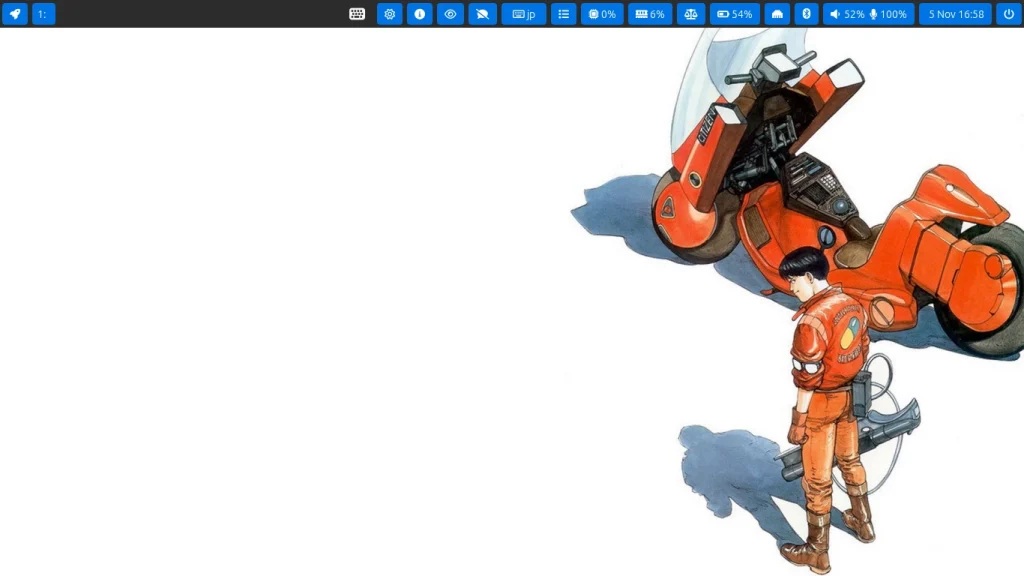
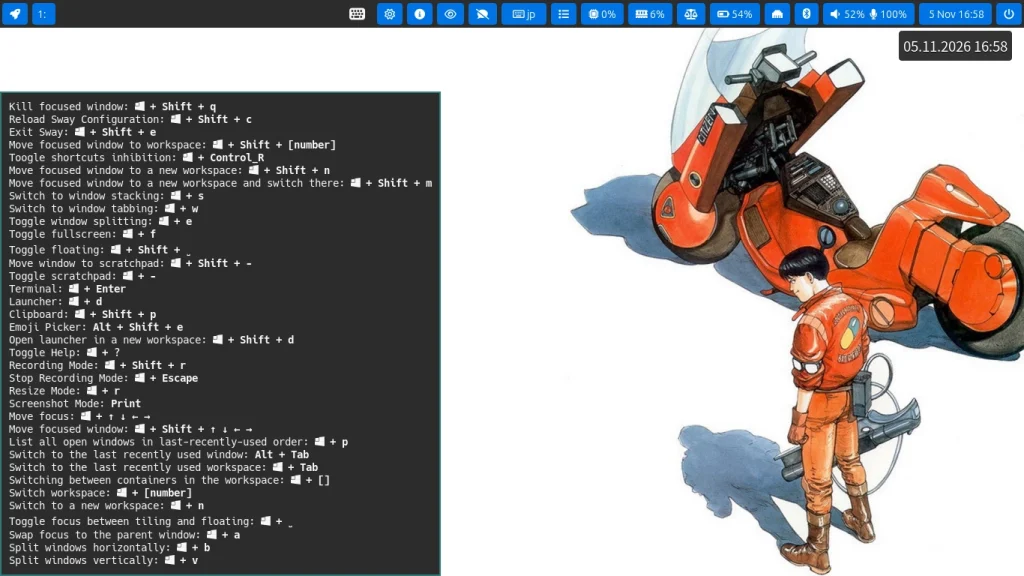
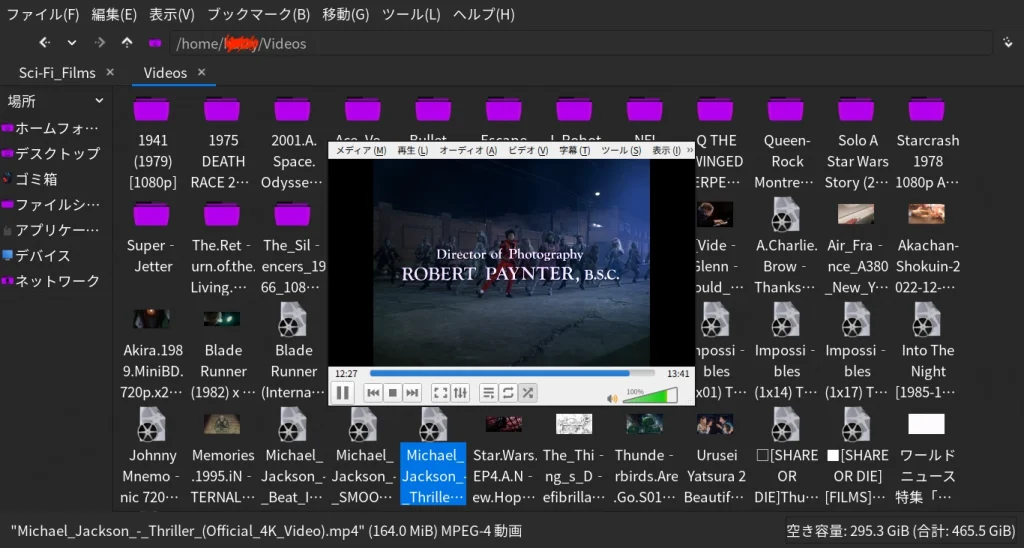
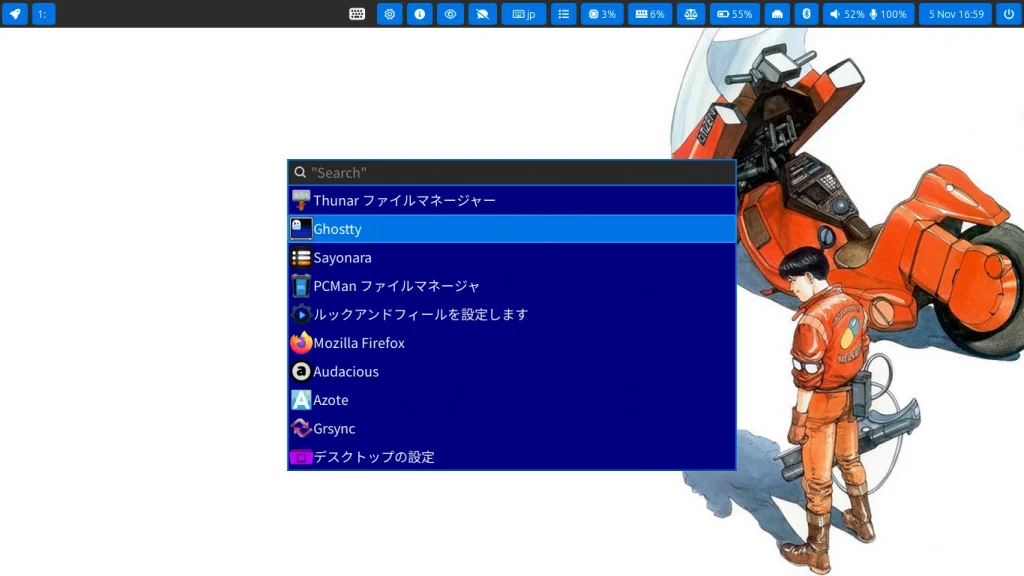
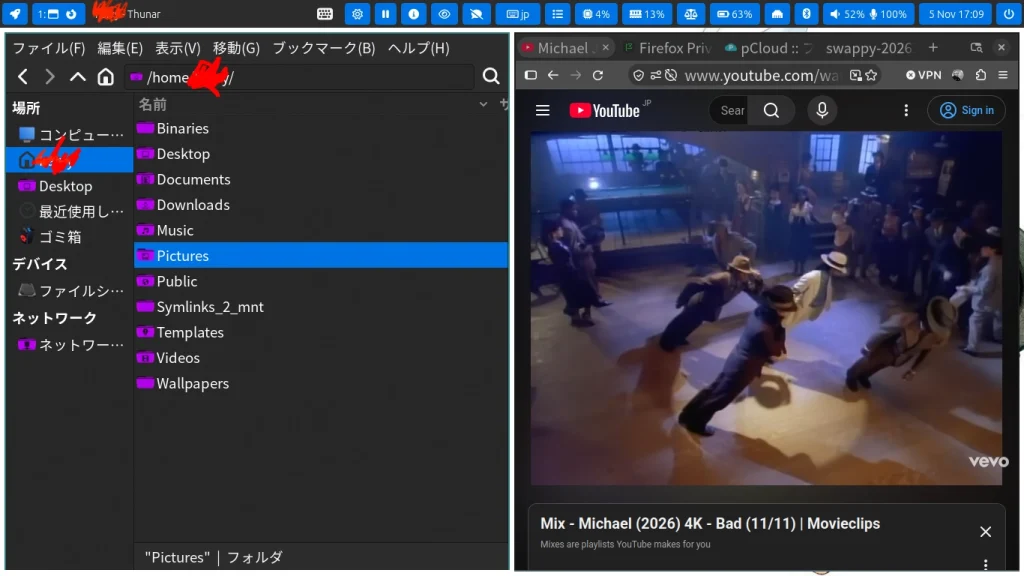
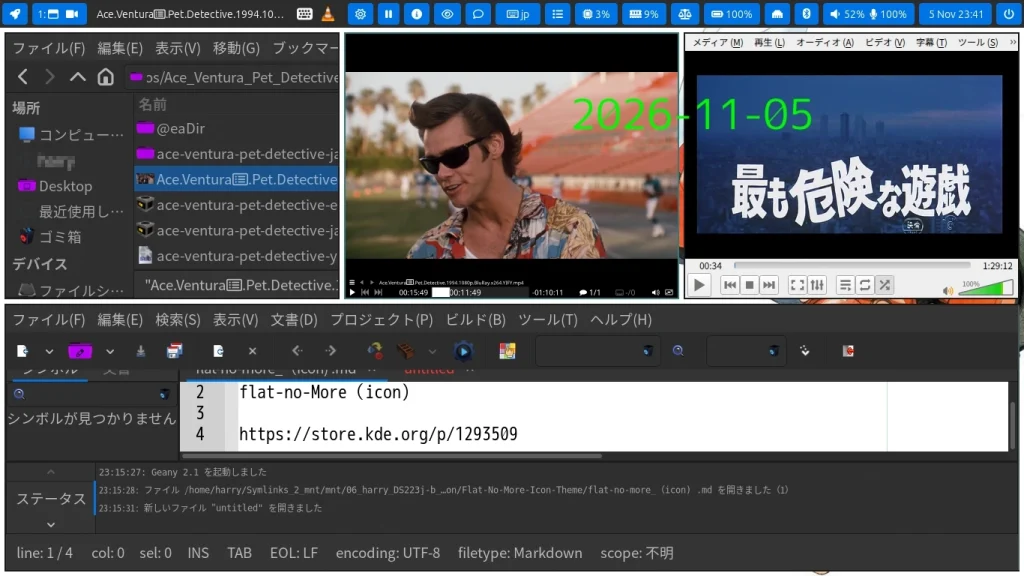
それでは、スクリーンショットでドヤリングの時間です。
どう考えても2026年は激動の年として終わりそうです。
私も、KubuntuとUbuntu Sway RemixとFreeBSD(Labwcとi3)をセットアップして、Waylandの世界とタイリング型のWindow Managerの世界にわけいることになりました。
予測誤差がある分野の方が面白いですね。
会社勤めの頃には毎日が大嫌いでしたけど、今は毎日たのしいです。
仕事がある日は(天職をつかんだから)嬉しい。 仕事がない日も、嬉しいです。 読書もFreeBSD遊びも散歩もできるからです。